Step 1: Grant permissions for the users to connect their email account.
Click on this link: https://login.microsoftonline.com/organizations/adminconsent?client_id=4da85329-5256-434a-8516-de4fc9927a35&redirect_uri=https://api.wholix.ai/api/v1/email/oauth/callback
Sign in with your Microsoft Admin Account
Review the required permissions, then click Allow.
Step 2: Connect your Outlook account
In your Wholix account, navigate to the “Email” module on the left side of your screen.
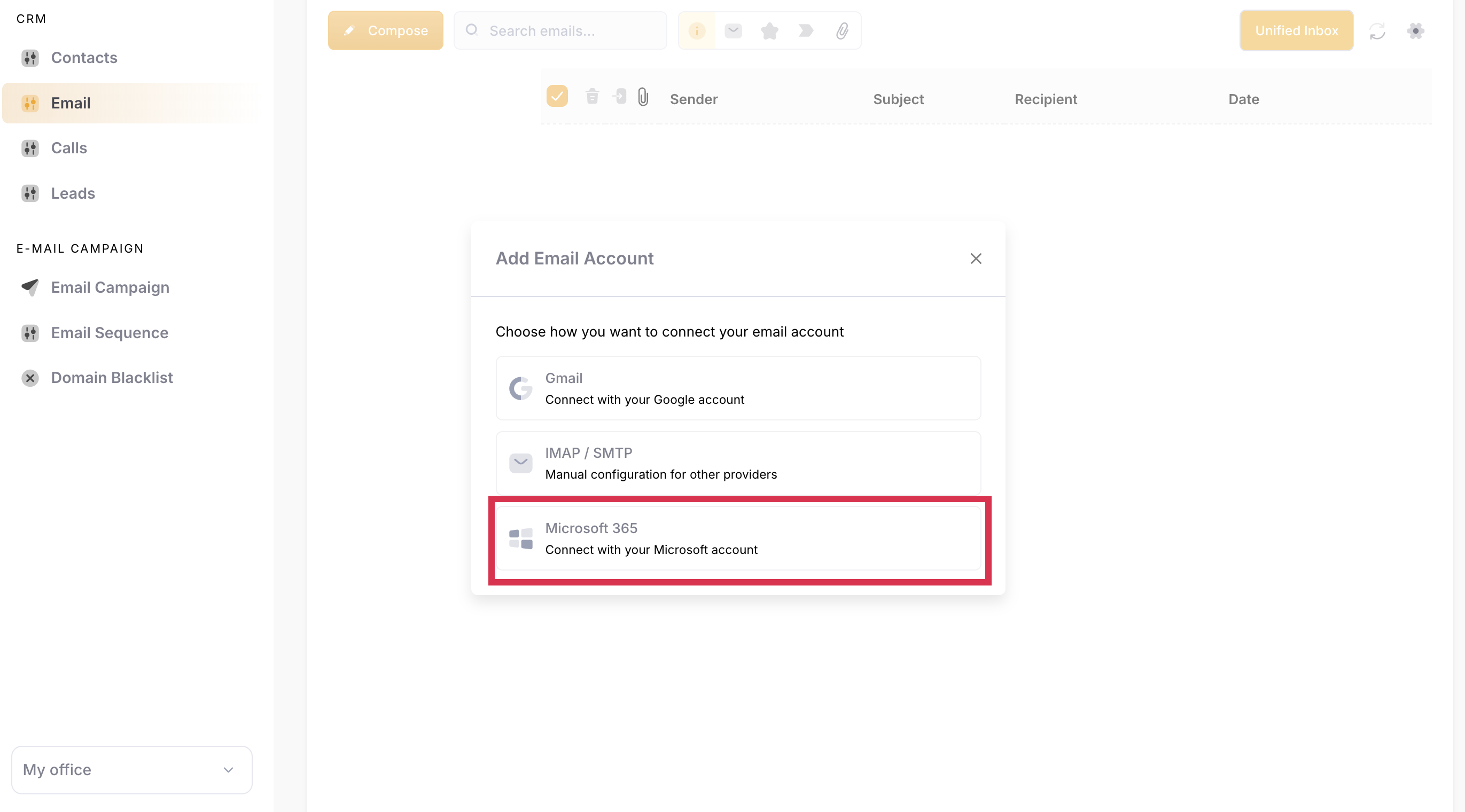
You will see a pop up appear on you screen
Click on “Microsoft 365”
You'll be prompted to log in to your Microsoft 365 account. Enter the email address of the Microsoft 365 account you want to use. If you're already logged into one or more of your email accounts, choose the account you want to connect.
You will see that your email account has been connected successfully.
You'll be redirected back to your Wholix Account
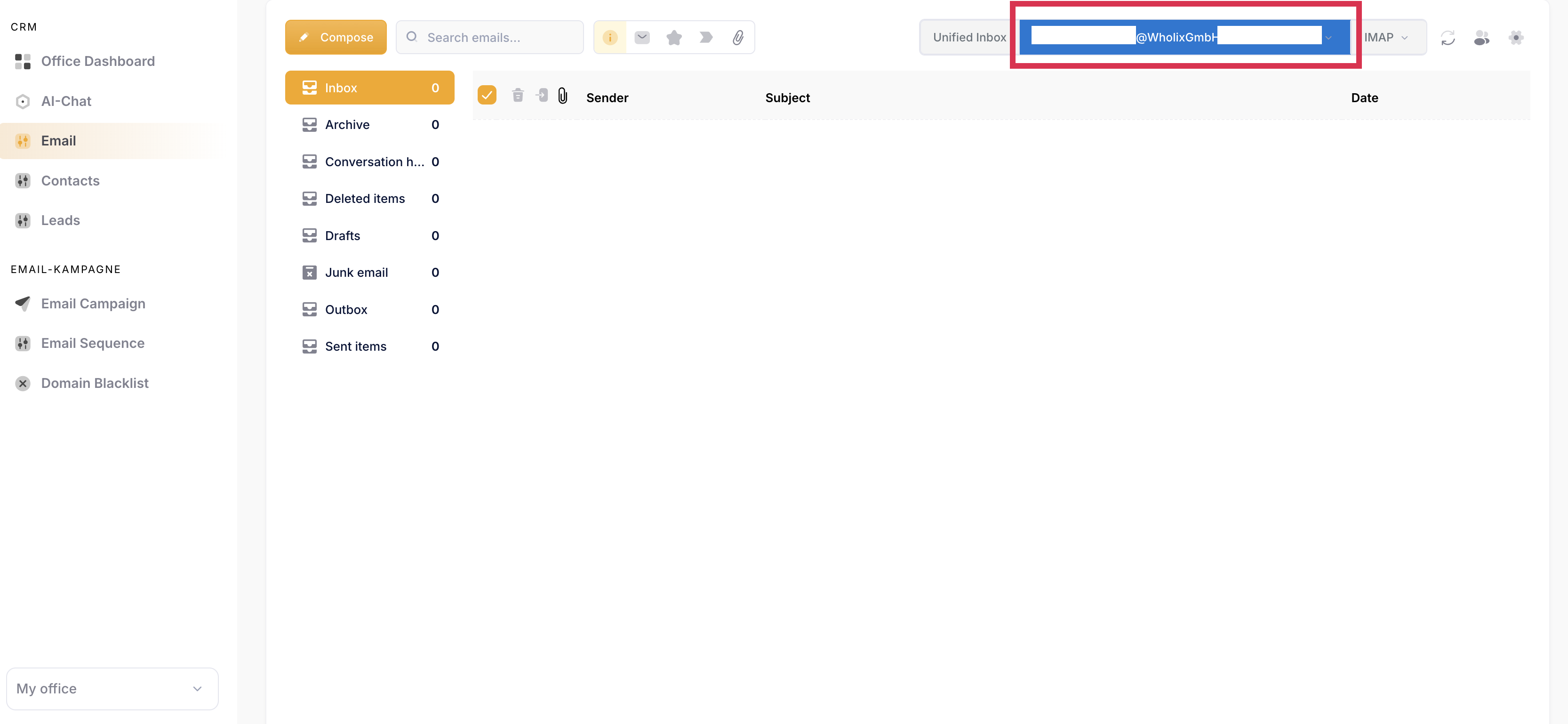
You will see in the top right corner, your email account has been connected.